 admin@technicalrvijay.com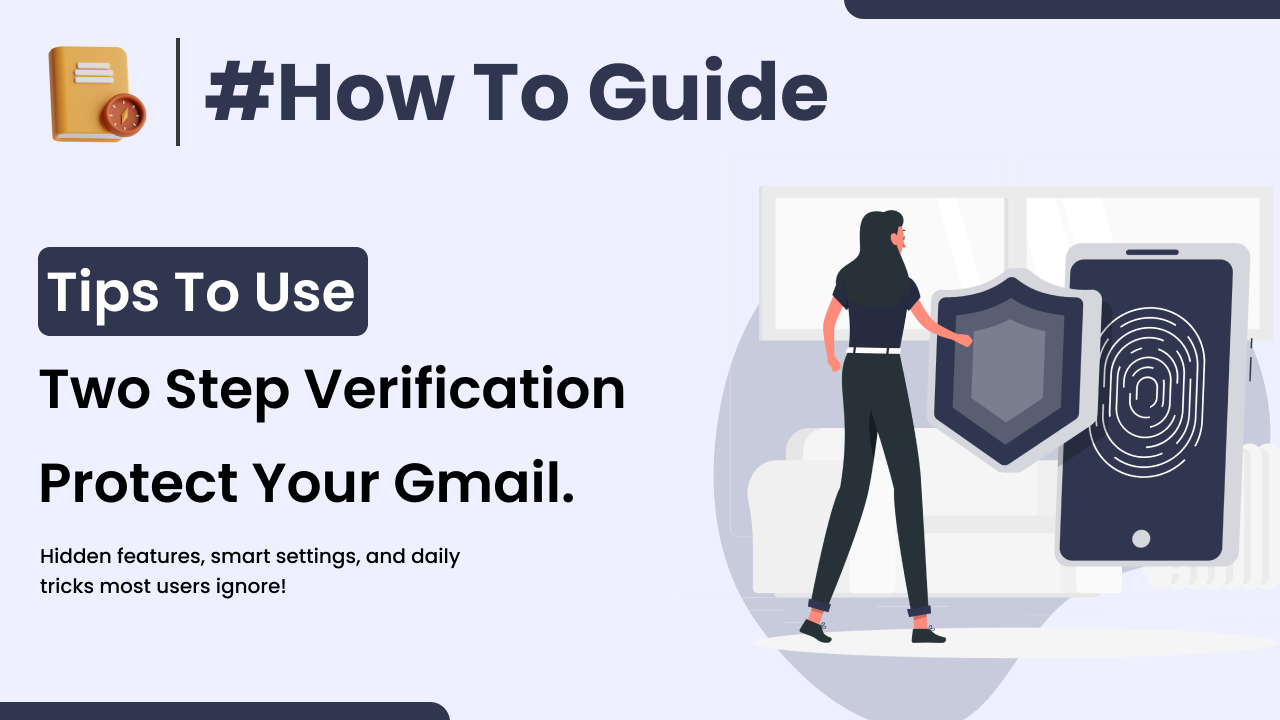
Online security is more important than ever. Passwords alone are no longer enough to protect your accounts. Hackers use advanced tools to guess or steal passwords, and once they succeed, they can access sensitive information.
This is where Two-Step Verification (also called Two-Factor Authentication or 2FA) becomes essential. But many people enable it without fully understanding how to use it properly.
In this guide, you will learn how to use two-step verification correctly, how it works, and how to maximize its protection.
What Is Two-Step Verification?
Two-Step Verification (2SV) adds an extra layer of security to your account login process.
Instead of only entering your password, you must also verify your identity using a second method, such as:
- A one-time SMS code
- An authenticator app code
- A security key
- Biometric approval
This means even if someone steals your password, they cannot log in without the second verification factor.
Google explains its two-step verification system here:
https://support.google.com/accounts/answer/185839
Why Two-Step Verification Is Important
Passwords can be compromised through:
- Phishing emails
- Data breaches
- Malware
- Weak password guessing
Two-step verification protects your account even if your password is exposed.
It is especially important for:
- Email accounts
- Banking apps
- Cloud storage
- Social media
- Business accounts
Step 1: Enable Two-Step Verification on Important Accounts
Start with your most critical accounts, especially your email.
For Google Accounts:
- Go to your Google Account
- Click Security
- Select 2-Step Verification
- Follow setup instructions
Official Google Security page:
https://myaccount.google.com/security
Enable 2FA wherever it is available.
Step 2: Choose the Right Verification Method
Not all 2FA methods provide equal security.
SMS Code (Basic Level)
- Easy to use
- Less secure than other methods
- Vulnerable to SIM swap attacks
Authenticator App (Recommended)
- Generates time-based codes
- Works offline
- More secure than SMS
Popular authenticator apps include:
- Google Authenticator
- Microsoft Authenticator
Security Key (Advanced Level)
- Physical device required
- Very strong protection
- Best for high-risk accounts
For most users, an authenticator app provides a good balance between security and convenience.
Step 3: Store Backup Codes Safely
During setup, you will receive backup codes.
These codes allow you to log in if:
- You lose your phone
- Your authenticator app is unavailable
Store backup codes:
- In a secure password manager
- In a safe physical location
Do not save them in plain text files on your device.
Step 4: Add Multiple Recovery Options
To use two-step verification correctly, always:
- Add a recovery email
- Add a recovery phone number
This prevents permanent lockout.
Without recovery options, losing access to your second factor can make account recovery difficult.
Step 5: Protect Your Phone
If your second verification depends on your phone, secure your device.
Use:
- Screen lock (PIN, fingerprint, face unlock)
- Updated operating system
- Trusted apps only
Your phone becomes part of your security system.
Google’s safety recommendations:
https://safety.google/
Step 6: Avoid Sharing Verification Codes
Never share your 2FA code with anyone.
Common scam:
- A hacker attempts login
- You receive a verification code
- Hacker calls pretending to be support
- They ask for the code
If you share it, they gain access.
Verification codes are private.
Step 7: Regularly Review Connected Devices
Check:
- Devices logged into your account
- Recent login activity
- Unknown sessions
Remove unfamiliar devices immediately.
Most platforms allow you to manage sessions in security settings.
Step 8: Understand When to Use “Remember This Device”
Many websites offer “Don’t ask again on this device.”
Use this option only if:
- The device is personal
- The device is secure
- The device is not shared
Avoid enabling it on public or office computers.
Common Mistakes When Using Two-Step Verification
Avoid these mistakes:
- Relying only on SMS verification
- Ignoring backup codes
- Losing access to authenticator app
- Disabling 2FA for convenience
- Using weak passwords alongside 2FA
Two-step verification enhances security but does not replace strong passwords.
What Happens If You Lose Access to 2FA?
If you lose access:
- Use backup codes
- Use recovery email
- Follow official recovery process
Always use official support pages — never third-party recovery services.
Is Two-Step Verification 100% Secure?
No security method is 100% perfect.
However, two-step verification dramatically reduces risk.
It protects against:
- Password leaks
- Brute-force attacks
- Many phishing attempts
It does not protect against:
- Malware on infected devices
- Sharing codes with scammers
Security depends on both technology and user behavior.
Final Thoughts
Learning how to use two-step verification correctly is one of the smartest steps you can take for online safety.
To use it properly:
- Enable it on critical accounts
- Use an authenticator app when possible
- Store backup codes safely
- Protect your device
- Never share verification codes
Two-step verification turns your password from a single lock into a double-locked security system.
Digital safety is built on small, consistent habits. Start today by enabling and properly managing 2FA across your accounts.