 admin@technicalrvijay.com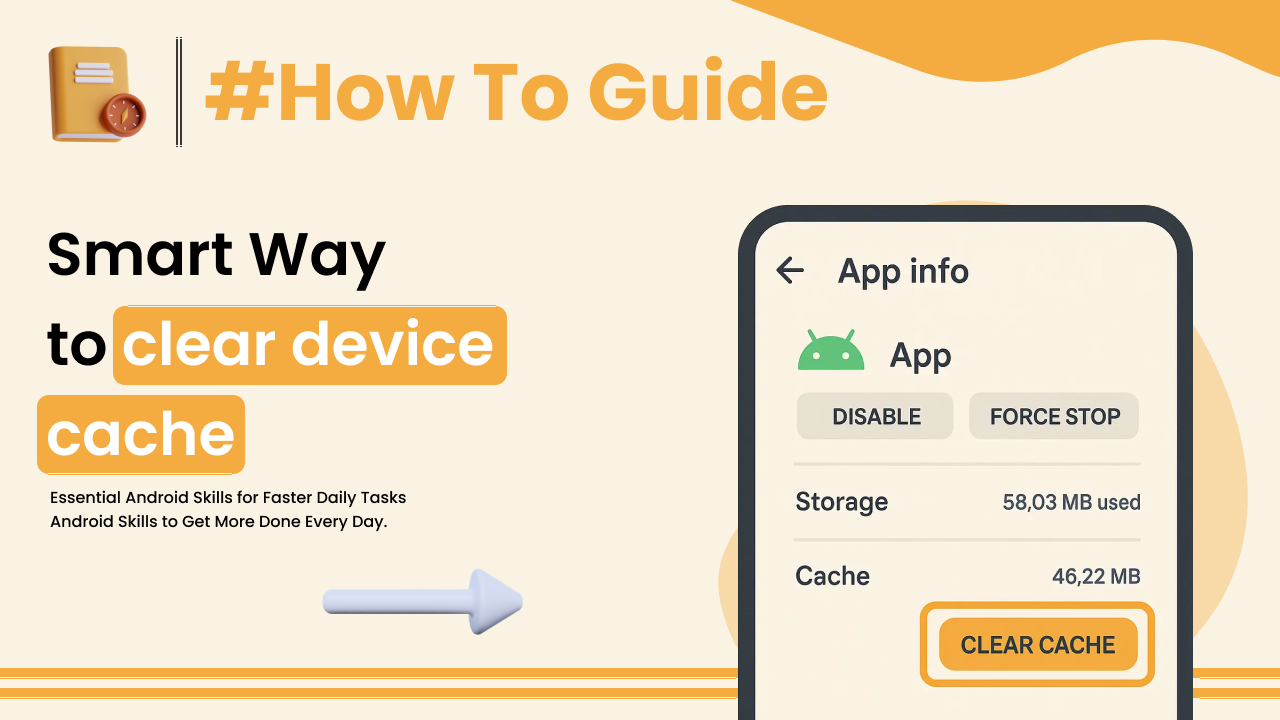
If your Android phone feels slow, apps crash frequently, or storage keeps filling up, clearing cache might help. But many users hesitate because they are unsure what cache is and whether deleting it could cause problems.
In this guide, you will learn how to clear cache safely on Android devices, what cache actually does, and when you should (or shouldn’t) remove it.
What Is Cache on Android?
Cache is temporary data stored by apps and the system to make processes faster.
For example:
- Your browser saves website images.
- Social media apps store recently viewed content.
- Streaming apps store temporary files.
This helps apps load faster the next time you open them.
However, over time, cache files can grow large and may cause performance issues.
Official Android help documentation explains storage and cache management here:
https://support.google.com/android/answer/7667018
Is Clearing Cache Safe?
Yes — clearing cache is generally safe.
Important difference:
- Clear Cache → Removes temporary files only.
- Clear Data → Removes app settings, login details, and personal data.
Always choose Clear Cache, not Clear Data, unless absolutely necessary.
When Should You Clear Cache?
You should consider clearing cache if:
- An app is not loading properly.
- An app crashes frequently.
- Storage space is low.
- The app behaves abnormally.
Clearing cache can refresh temporary files and fix minor issues.
Method 1: Clear Cache for Individual Apps
This is the safest and most recommended method.
Step-by-Step Guide:
- Open Settings
- Tap Apps (or “Apps & Notifications”)
- Select the app you want to clean
- Tap Storage
- Tap Clear Cache
Repeat for other apps if needed.
Do not tap “Clear Data” unless you want to reset the app completely.
Method 2: Clear Browser Cache
Browsers often store large cache files.
For Chrome:
- Open Chrome
- Tap three dots (top right)
- Go to Settings → Privacy and Security
- Tap Clear Browsing Data
- Select Cached images and files
- Tap Clear Data
Official Chrome support page:
https://support.google.com/chrome/
Clearing browser cache may log you out of some websites if cookies are selected.
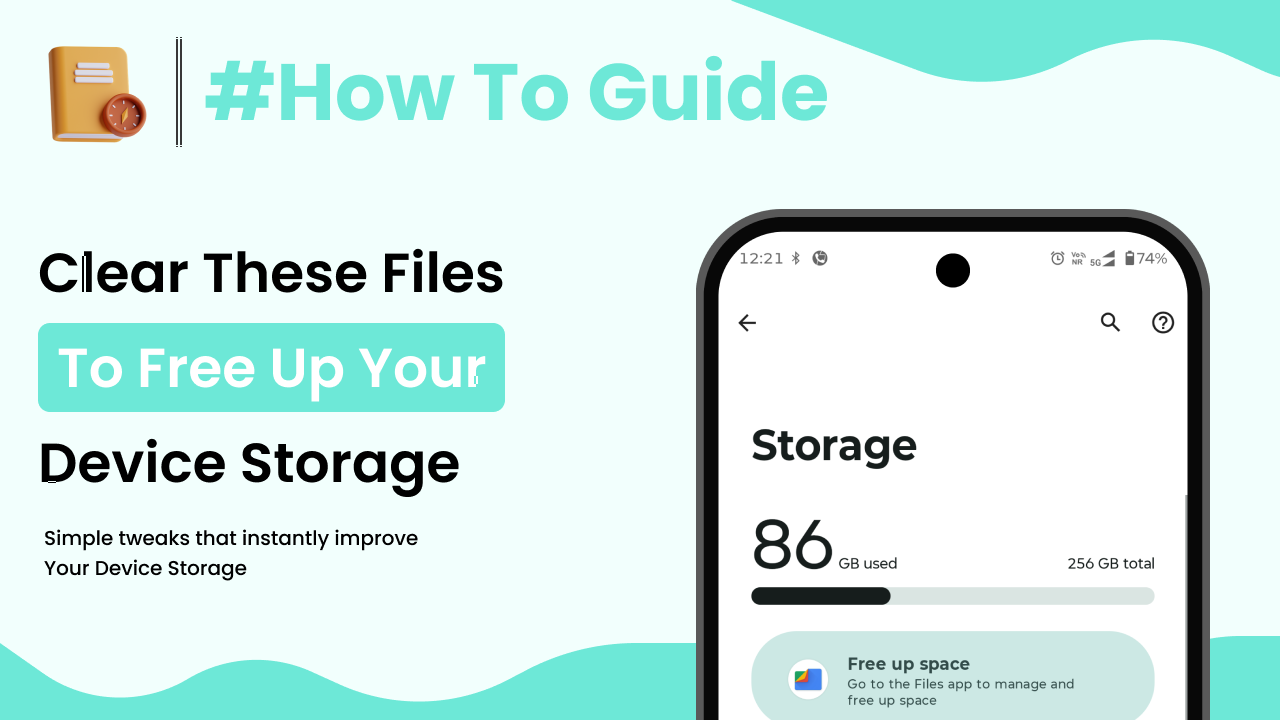
Method 3: Use Built-In Storage Cleaner
Many Android devices include storage management tools.
Look for options like:
- “Free up space”
- “Storage cleaner”
- “Device care”
These tools:
- Identify large temporary files
- Suggest safe cleanup
- Help remove junk files
Using built-in tools is safer than installing unknown cleaning apps.
Should You Use Third-Party Cleaner Apps?
Be cautious.
Many “cleaner” apps:
- Show unnecessary ads
- Run in the background
- Do not actually improve performance
Android already manages memory efficiently.
Only use trusted apps from official app stores.
How Often Should You Clear Cache?
You do not need to clear cache daily.
Recommended frequency:
- Once a month
- When facing app issues
- When storage is low
Clearing cache too often may temporarily slow apps because they need to rebuild cached data.
Does Clearing Cache Improve Speed?
Sometimes — yes.
Clearing cache may:
- Fix app freezing
- Resolve minor glitches
- Free small storage space
However, it is not a magic speed booster.
If your phone is consistently slow, other factors may be involved:
- Low storage space
- Outdated software
- Too many background apps
What Happens After Clearing Cache?
After clearing cache:
- Apps may load slightly slower the first time
- You remain logged in
- Personal data stays intact
The system rebuilds necessary cache automatically.
Clearing System Cache (Advanced Users)
Older Android versions allowed clearing system cache through recovery mode.
On most modern Android versions, this option is limited.
If you are unsure, avoid recovery mode unless recommended by official support.
Improper recovery settings can cause issues.
Tips to Prevent Cache Overload
Instead of repeatedly clearing cache, follow these habits:
- Update apps regularly
- Keep storage at least 20% free
- Avoid installing too many unnecessary apps
- Restart phone weekly
Regular maintenance reduces cache-related issues.
Common Mistakes to Avoid
Avoid these errors:
- Clearing app data instead of cache
- Installing random “booster” apps
- Deleting unknown system files
- Clearing cache multiple times daily
Smart cleaning is better than aggressive cleaning.
Final Thoughts
Learning how to clear cache safely on Android devices helps you maintain smooth performance without risking important data.
The safest approach is:
- Clear cache for specific apps
- Use built-in storage tools
- Avoid unnecessary third-party cleaners
- Understand the difference between cache and data
Cache cleaning is helpful — but only when done correctly.
Good digital habits keep your Android device running efficiently.