 admin@technicalrvijay.com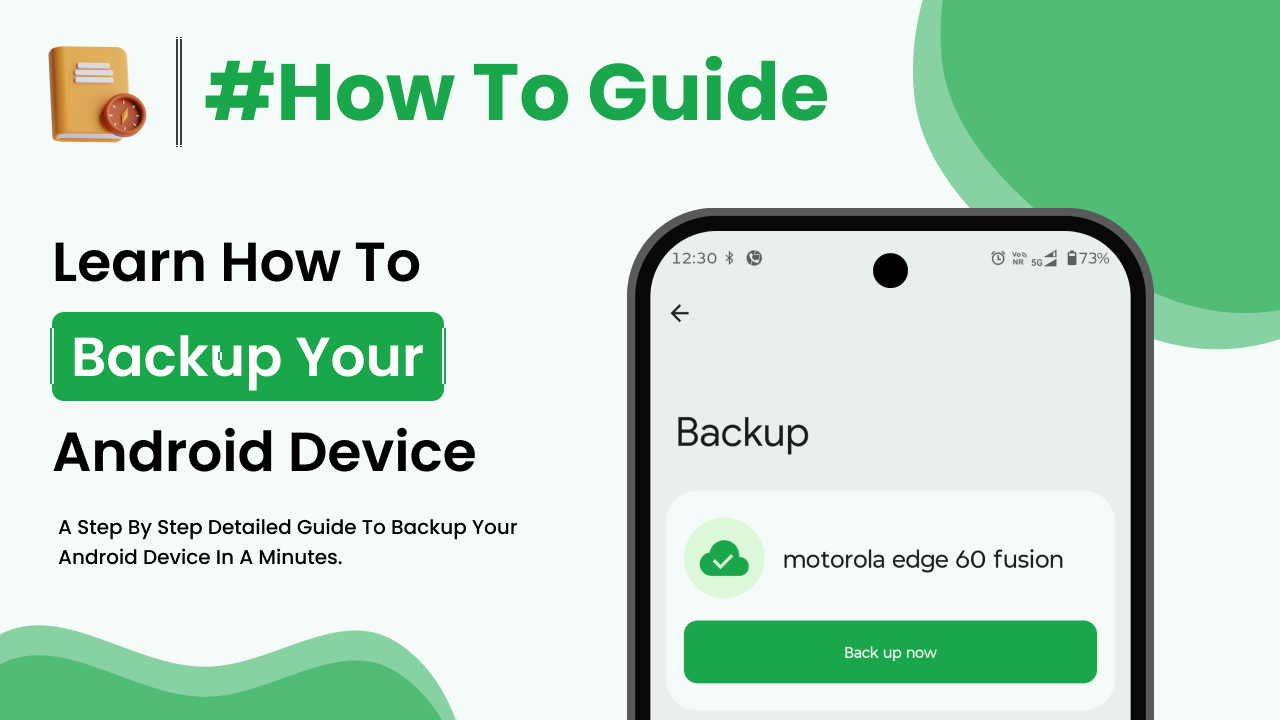
Your smartphone holds more important information than you might realize. From photos and contacts to documents and app data, your Android phone contains personal and sometimes sensitive data. If your device is lost, stolen, damaged, or reset, you could lose everything permanently.
That’s why learning how to backup your Android phone properly is essential. In this guide, you’ll understand step-by-step methods to safely back up your Android data and prevent permanent loss.
Why Backing Up Your Android Phone Is Important
Many users ignore backups until something goes wrong. Unfortunately, data loss often happens suddenly.
You may lose data due to:
- Accidental deletion
- Software crash
- Factory reset
- Phone theft
- Physical damage
Regular backups ensure your data remains safe even if your device fails.
Types of Data You Should Backup
Before starting, understand what needs protection:
- Contacts
- Photos and videos
- SMS messages
- Call history
- App data
- Documents
- Settings
A proper backup includes both personal files and system data.
Method 1: Backup Using Google Account (Recommended)
Android phones are designed to work with Google accounts, making cloud backups simple and automatic.
Step 1: Open Settings
Go to:
Settings → Google → Backup
Step 2: Turn On “Backup by Google One”
Enable the backup option.
This will back up:
- App data
- SMS messages
- Call history
- Device settings
- Contacts
Official Google backup guide:
https://support.google.com/android/answer/2819582
Step 3: Tap “Back Up Now”
You can manually trigger a backup anytime.
This is the safest and most convenient method for most users.
Method 2: Backup Photos and Videos to Google Photos
Photos and videos usually take the most storage space.
Step 1: Open Google Photos
Download or open the Google Photos app.
Step 2: Enable Backup
Go to:
Profile → Photos Settings → Backup
Turn on Backup.
Official support page:
https://support.google.com/photos/answer/6193313
Your photos will automatically upload to cloud storage when connected to Wi-Fi.
Method 3: Backup Contacts Separately
Contacts are critical.
To check if contacts are syncing:
- Go to Settings
- Tap Accounts
- Select your Google account
- Ensure “Contacts” sync is enabled
You can also verify contacts at:
https://contacts.google.com/
If your contacts appear there, they are safely backed up.
Method 4: Backup Using a Computer
Some users prefer offline backups.
Steps:
- Connect your Android phone to a computer using USB
- Select “File Transfer” mode
- Copy important folders such as:
- DCIM (Photos)
- Documents
- Downloads
This method stores files locally but does not automatically back up app data or settings.
Offline backups are useful as an additional safety layer.
Method 5: Backup Using Manufacturer Tools
Some Android brands offer built-in backup services.
For example:
- Samsung Smart Switch
- Xiaomi Cloud
- OnePlus Switch
Check your device’s official support page for brand-specific tools.
Automatic vs Manual Backup
Automatic Backup
- Runs in the background
- Requires minimal effort
- Ideal for daily protection
Manual Backup
- Good for extra safety
- Useful before factory reset
- Helpful before software updates
For maximum security, use both.
How Often Should You Backup?
Ideally:
- Automatic cloud backup: Always ON
- Manual backup: Once per month
- Before factory reset or major update
Regular backup reduces risk.
How to Check If Your Backup Is Working
To verify:
- Go to Settings → Google → Backup
- Check last backup date
- Confirm Google Photos sync
You can also check stored backups at:
https://one.google.com/storage
Verification ensures everything is properly saved.
What Happens During Factory Reset?
If your phone is reset:
- Data stored on device is erased
- Cloud backup remains safe
After signing in again with your Google account:
- Contacts restore
- App data restores
- Settings reappear
This is why proper backup setup is essential before resetting your device.
Common Backup Mistakes to Avoid
Avoid these mistakes:
- Turning off backup to save data
- Forgetting Wi-Fi connection
- Not checking sync status
- Ignoring storage limits
Also, make sure your Google account storage has enough space.
Extra Security Tips
When backing up sensitive data:
- Use strong Google account password
- Enable two-step verification
- Avoid public Wi-Fi during backup
Secure backup is as important as backup itself.
Google security information can be found here:
https://safety.google/
Final Thoughts
Understanding how to backup your Android phone properly ensures your valuable data remains safe even if something unexpected happens.
The safest method is enabling Google backup combined with Google Photos sync. Adding occasional manual computer backups provides extra protection.
Data loss is often preventable. Setting up automatic backups today can save you from major problems in the future.
Make backup a habit, not an emergency action.