 admin@technicalrvijay.com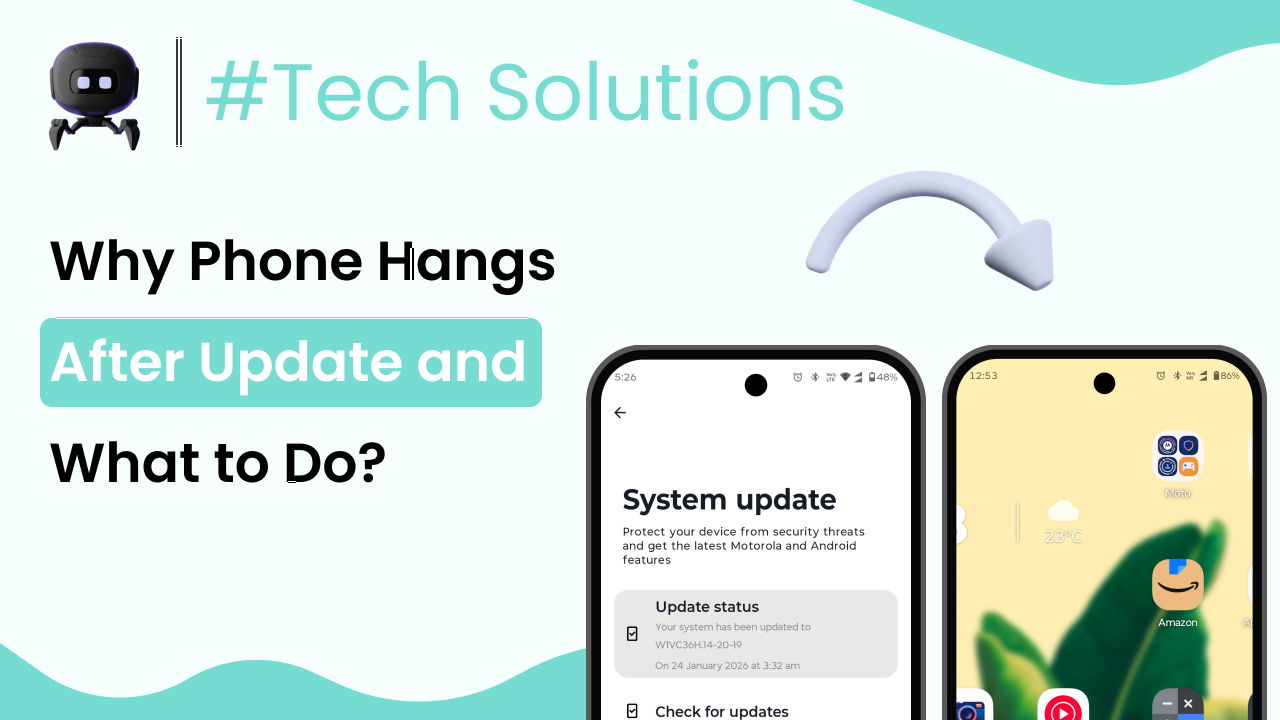
If your phone hangs after update, you’re not alone. Many users notice that their device becomes slow, freezes, or starts lagging right after installing a system update. Apps may take longer to open, the screen may stop responding for a few seconds, or the phone may restart unexpectedly.
Software updates are meant to improve performance, fix bugs, and add new features. But sometimes, right after an update, the phone may not behave as expected. In this article, we’ll clearly explain why a phone hangs after update, what causes it, and what you can do step by step to fix it.
What Does “Phone Hangs After Update” Mean?
When we say a phone hangs after update, it usually means:
- The phone becomes slow or unresponsive.
- Apps freeze or crash.
- The screen stops responding for a few seconds.
- The device restarts randomly.
- Animations feel laggy.
This issue can happen on both Android and iOS devices. It does not always mean your phone is damaged. In many cases, it is a temporary problem caused by software adjustments happening in the background.
Why Phone Hangs After Update
There are several common reasons why this happens. Let’s look at them one by one.
Temporary Background Processing After Update
After installing a major system update, your phone does more than just restart.
It may:
- Re-index files
- Optimize apps
- Rebuild system caches
- Update background services
For example, on Android devices, the system may optimize apps in the background after an update. This process can slow the device temporarily.
This is especially common after large updates like a major version upgrade of Android or iOS.
In most cases, performance improves within 24–48 hours.
Not Enough Storage Space
Updates need free storage to install properly and run smoothly.
If your phone storage is almost full:
- The update may not install cleanly.
- System files may struggle to function.
- Apps may freeze or crash.
A phone with less than 10–15% free storage often experiences lag after updates.
You can check storage in:
- Settings → Storage
If it’s nearly full, that could be a major reason your phone hangs after update.
App Compatibility Issues
Some apps may not be fully compatible with the new system version right away.
For example:
- Older apps may not support new system features.
- Apps that haven’t been updated recently may crash.
- Background apps may conflict with system changes.
This is common right after major updates, especially on older devices.
Corrupted Cache Files
When your phone updates, old temporary files (cache) may not work properly with the new system.
Corrupted cache can cause:
- Lagging
- Freezing
- Random app crashes
- Overheating
Clearing cache can often solve these issues without deleting personal data.
Older Hardware with New Software
New system updates are designed for newer hardware. If your device is 3–4 years old, it may struggle with:
- Heavier animations
- New background features
- Increased memory usage
For example, installing a newer version of Android on an entry-level phone with low RAM can result in slower performance.
This does not mean the update is broken. It may simply require more resources than your phone has.
Bugs in the Update
Sometimes, the update itself may contain bugs.
Even major companies occasionally release updates that cause performance issues on certain models. Later patches usually fix these problems.
If many users report similar issues after the same update, it may not be your phone specifically.
Step-by-Step: What to Do If Phone Hangs After Update
Now let’s go through practical steps you can take.
Step 1: Restart the Phone
This may sound simple, but it works.
A proper restart:
- Clears temporary processes
- Refreshes system memory
- Stops background glitches
After a major update, restarting the phone once or twice can improve performance.
Step 2: Wait 24–48 Hours
If the update was installed recently, give your phone time.
During this period:
- Avoid installing too many new apps.
- Keep the phone connected to Wi-Fi.
- Let background optimization complete.
Many performance issues disappear after system stabilization.
Step 3: Free Up Storage Space
Check how much storage is available.
You can:
- Delete unused apps.
- Remove large videos.
- Clear downloads folder.
- Move photos to cloud storage.
Aim to keep at least 20% storage free for smoother performance.
Step 4: Update All Apps
Go to your app store and update all installed apps.
On Android:
- Open Google Play Store
- Tap Update All
On iPhone:
- Open App Store
- Update apps manually or automatically
Developers often release updates to fix compatibility issues after major system upgrades.
Step 5: Clear Cache (Android Only)
On many Android phones, you can:
- Go to Settings → Apps
- Select an app
- Tap Storage
- Clear Cache
You can also clear system cache through recovery mode (steps vary by device).
Clearing cache does not delete personal data.
Step 6: Reset Settings (Optional)
If lag continues, you may reset system settings (not factory reset).
This resets:
- Wi-Fi settings
- Bluetooth settings
- Display preferences
It does not delete photos or apps.
Step 7: Factory Reset (Last Option)
If the phone hangs after update even after trying everything, a factory reset may help.
Before doing this:
- Back up all important data.
- Save contacts, photos, and files.
A factory reset removes:
- All apps
- User data
- Old corrupted system files
It often restores performance if the update installation was corrupted.
Real-Life Example
Imagine this situation:
You update your 3-year-old phone to a new system version. After updating:
- Apps take longer to open.
- The phone freezes for 3–4 seconds.
- Battery drains faster.
You check storage and find only 2GB free out of 64GB.
After:
- Deleting unused apps,
- Clearing cache,
- Updating all apps,
The phone becomes smoother within two days.
The issue was not the update itself, but low storage and background optimization.
Common Misconceptions
“Every Update Makes Phones Slower”
Not always.
Most updates improve security and fix bugs. Slow performance often comes from:
- Full storage
- Outdated apps
- Old hardware limitations
Blaming the update alone may overlook the real cause.
“You Should Never Update Your Phone”
Avoiding updates can cause:
- Security risks
- App compatibility issues
- Missing important fixes
Both Android and iOS updates often include important security patches.
“Factory Reset Is Always Required”
A factory reset should be the last option, not the first.
Most hanging issues after update can be fixed by:
- Restarting
- Clearing storage
- Updating apps
- Waiting for stabilization
Why This Issue Matters
When your phone hangs after update, it affects daily tasks like:
- Messaging
- Calling
- Browsing
- Online payments
- Work communication
Understanding the reason behind the lag helps you fix it calmly instead of panicking or assuming the device is permanently damaged.
Updates are part of how smartphones stay secure and functional. Knowing how to handle post-update issues is an important digital skill.
Final Summary
If your phone hangs after update, the problem is usually temporary or related to:
- Background optimization
- Low storage
- App compatibility
- Cache issues
- Hardware limitations
Start with simple steps:
- Restart the phone.
- Wait 24–48 hours.
- Free up storage.
- Update all apps.
- Clear cache if needed.
Only consider factory reset if nothing else works.
In most cases, patience and basic troubleshooting solve the issue