 admin@technicalrvijay.com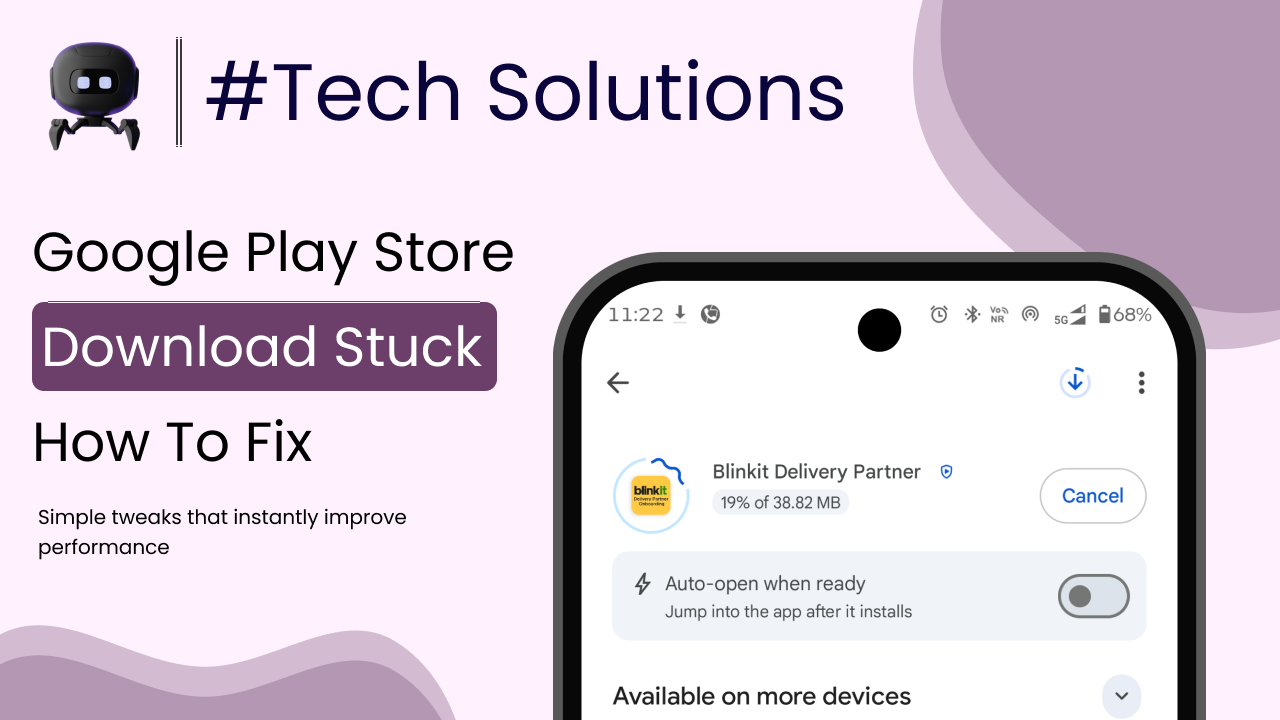
You tap “Install.”
The download starts.
Then it freezes.
Or worse — it says “Pending” for minutes… sometimes hours.
If you’re dealing with the Google Play Store download stuck issue, you’re not alone. It’s one of the most common Android problems. And the good news? It’s usually fixable without technical expertise.
Let’s understand why it happens and how to solve it step by step — the right way.
Why Google Play Store Downloads Get Stuck
Before fixing anything, understand this clearly.
When you download an app from Google Play Store, several systems work together:
- Your internet connection
- Google Play Store app
- Google Play Services
- Device storage
- Android system permissions
If any one of these fails or conflicts, the download can freeze.
Now here’s the important part.
Most download issues are caused by small system conflicts — not major device problems.
Common Reasons Google Play Store Download Gets Stuck
Let’s break down the real causes.
1. Weak or Unstable Internet Connection
Even if WiFi shows full signal, the internet may be unstable.
Download interruptions often happen due to:
- Network switching (WiFi to mobile data)
- Router issues
- Background bandwidth usage
If your internet speed fluctuates, downloads may pause automatically.
2. Low Storage Space
If your device storage is nearly full, downloads won’t complete.
Apps need extra temporary space to install properly.
Keep at least 20% storage free.
No free space = installation failure.
3. Pending Multiple Downloads
If multiple apps are queued for update, new downloads may show “Pending.”
Open Play Store → Profile Icon → Manage Apps & Device.
Check if updates are waiting.
Pause unnecessary ones.
4. Corrupted Cache in Play Store
Google Play Store stores temporary files (cache).
If these files become corrupted, downloads freeze or fail.
Clearing cache often fixes the issue immediately.
5. Outdated Google Play Services
Google Play Services manages app authentication and system integration.
If it’s outdated or glitching, downloads may stop.
Google explains Play Services functionality in their official documentation:
https://support.google.com/googleplay/answer/9037938
Updating or resetting it can solve many hidden issues.
6. Date and Time Mismatch
If your device date and time are incorrect, Google’s servers may reject authentication requests.
Always enable:
Settings → Date & Time → Automatic Date & Time
Simple detail, but often overlooked.
7. Software Bugs After Update
Sometimes system updates cause temporary conflicts.
If the issue started right after a software update, restarting the device may resolve it.
Real-Life Example
Let’s say:
Rahul tries to download Instagram. It shows “Pending” for 10 minutes.
He checks storage — 96% full.
After deleting 3GB of old videos and clearing Play Store cache, the download starts instantly.
The problem wasn’t the Play Store itself. It was storage overload.
This happens more often than people realize.
How to Fix Google Play Store Download Stuck (Step-by-Step)
Follow this order.
Don’t randomly reset everything at once.
Step 1: Restart Your Phone
Yes, start simple.
Restart clears temporary system conflicts.
Try downloading again after reboot.
Step 2: Check Internet Connection
Switch between:
- WiFi
- Mobile data
Or restart your router.
Test internet speed before retrying download.
Step 3: Clear Google Play Store Cache
Go to:
Settings → Apps → Google Play Store → Storage → Clear Cache
Do NOT clear data yet.
Try downloading again.
Step 4: Clear Google Play Services Cache
Go to:
Settings → Apps → Google Play Services → Storage → Clear Cache
Restart the phone.
Test again.
Step 5: Free Up Storage Space
Go to:
Settings → Storage
Delete:
- Unused apps
- Large videos
- Duplicate files
Make sure you have at least 2–3GB free.
Step 6: Check Download Preferences
Open Play Store → Profile → Settings → Network Preferences.
Ensure downloads are allowed over:
- Any network (if using mobile data)
Sometimes downloads are restricted to WiFi only.
Step 7: Remove and Re-Add Google Account
If nothing works:
- Go to Settings → Accounts → Google
- Remove your Google account
- Restart phone
- Add account again
This refreshes Play Store authentication.
Only do this if previous steps fail.
Step 8: Reset App Preferences
Go to:
Settings → Apps → Reset App Preferences
This resets disabled apps and permissions.
It does NOT delete personal data.
Step 9: Factory Reset (Last Option)
If downloads are still stuck after trying everything, backup your data and perform a factory reset.
This removes deep system conflicts.
But use this as a last resort.
Common Mistakes People Make
Mistake 1: Installing Third-Party APK Files
If Play Store fails, some users download apps from unknown websites.
This increases malware risk.
Fix the Play Store instead.
Mistake 2: Ignoring Storage Warnings
Full storage is a major cause of installation failure.
Don’t ignore it.
Mistake 3: Using VPN During Download
VPNs sometimes interfere with Play Store server authentication.
Turn off VPN temporarily.
Mistake 4: Clearing Data Immediately
Clearing Play Store data removes account settings.
Start with clearing cache first.
Why This Issue Matters
Play Store is essential for:
- App updates
- Security patches
- New app installations
If downloads fail, your apps become outdated.
Outdated apps can cause:
- Crashes
- Security vulnerabilities
- Compatibility issues
So fixing this problem quickly is important.
When It Could Be a Device Limitation
Let’s be realistic.
If your phone:
- Has 16GB or 32GB storage
- Runs an old Android version
- No longer receives updates
Then installation problems may become frequent.
Modern apps are larger than before.
Hardware limitations eventually show up.
Final Thoughts
If your Google Play Store download is stuck, the reason is usually:
- Internet instability
- Low storage
- Corrupted cache
- Outdated Play Services
- Multiple pending updates
Start simple.
Restart.
Clear cache.
Free storage.
Check network.
Most issues resolve within minutes once diagnosed properly.
Don’t panic.
Don’t install risky apps.
Fix it logically — and you’ll save yourself time and frustration.